Managing several client accounts from one computer involves more than keeping passwords in different tabs. Each account needs its own session data, a predictable browser configuration and the right network connection. A profile can have separate cookies while still using the same public IP as every other profile. Conversely, changing an IP does not separate cookies or browser storage.
Afina Browser brings profile management, fingerprint controls and automation into a Chromium-based desktop application. For ProxyUDP users, its documented support for native UDP routing through SOCKS5 is especially relevant. This guide explains what Afina offers, how to connect a ProxyUDP endpoint and what to check before using the combination for everyday work. It is based on Afina’s supplied product overview and public documentation, rather than an independent performance benchmark.
Quick Overview: What Afina Adds to a Proxy Workflow
| Area | Afina capability | Practical use |
|---|---|---|
| Browser profiles | Separate cookies, cache and browser storage | Keep client sessions and project data apart |
| Fingerprint settings | Controls for device and browser characteristics | Maintain a consistent environment for each profile |
| Proxy connections | HTTP, HTTPS and SOCKS5, including documented native UDP routing | Assign a connection to each profile and verify its network behavior |
| Automation | Visual scripts, JavaScript modules and a local API | Repeat tested workflows without rebuilding them for every account |
| Team access | Shared profiles and permissions on team plans | Give colleagues access to the work they need |
How Profiles and Fingerprint Settings Work
Afina’s company overview describes each profile as a separate Chromium process with its own local data folder. Cookies, localStorage, IndexedDB and cache are separated between profiles. This matters when an agency needs to keep one client’s login state away from another client’s workspace, or when a tester needs several persistent environments.
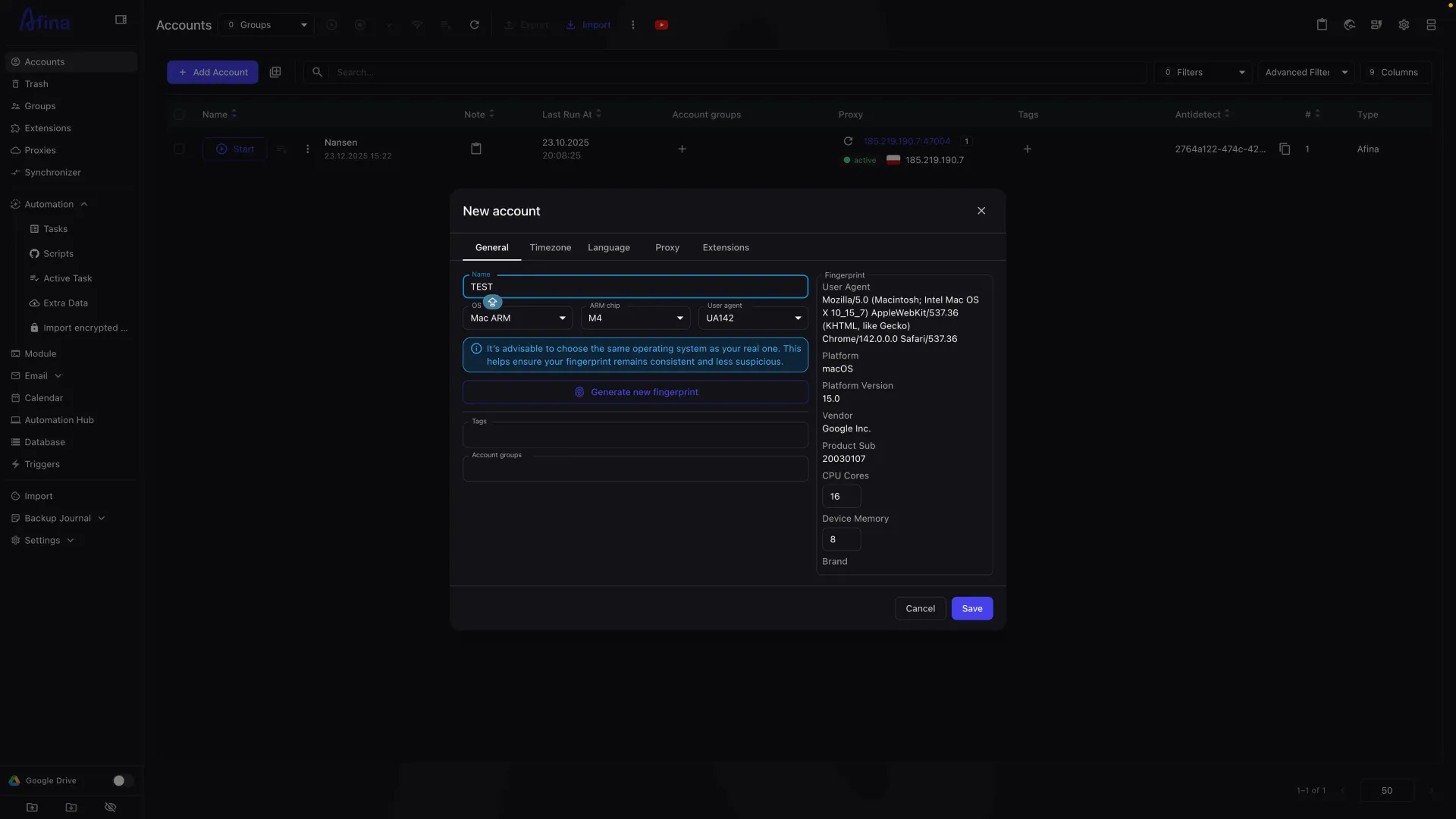
The fingerprint settings cover signals such as User-Agent, Canvas, WebGL, audio, screen characteristics and time zone. Afina also provides device-oriented presets. The useful principle is consistency: choose settings that fit together, then keep a working profile stable instead of changing several parameters before every session. A mobile operating-system fingerprint is still an emulation inside the desktop application; it is not a separate physical phone.
Afina’s Accounts documentation explains how profiles are organized with groups, tags, filters and bulk actions. Start with names that identify the client or project, then record the assigned proxy and intended region. This makes it easier to find a profile and diagnose an incorrect connection later. Profile isolation reduces accidental mixing of local data, but does not guarantee that a website cannot associate accounts through other signals.
Why Native SOCKS5 UDP Support Matters
SOCKS5 includes a UDP relay mechanism called UDP ASSOCIATE, defined in RFC 1928. The client establishes a control connection and uses the relay for UDP datagrams. Both the client and the proxy must support that mechanism; selecting a SOCKS5 entry in an application is not enough to establish that UDP traffic follows it.
This distinction matters for protocols such as QUIC and for WebRTC connectivity. Afina documents native SOCKS5 UDP routing and publishes a WebRTC and UDP testing guide. That makes network behavior a concrete feature to evaluate when choosing a browser for a UDP-capable ProxyUDP connection.
Support in a product description is a starting point, not a test result for your machine. The browser version, profile configuration, proxy endpoint and local network all affect the result. A web page loading successfully establishes ordinary connectivity; it does not, by itself, verify WebRTC or UDP routing. Likewise, an unavailable HTTP/3 connection is not automatically an IP leak: a connection may fall back to TCP.
How to Connect Afina Browser to ProxyUDP
1. Prepare the connection details
Install the appropriate Windows or macOS build from Afina’s official download page. In your ProxyUDP dashboard, open an active subscription and locate its proxy host, SOCKS5 port, proxy username and proxy password. Use the connection fields supplied for that endpoint. The website login password, order reference and current external IP are not substitutes for the proxy credentials.
Keep the host and external IP distinct. The host is where Afina connects to the proxy service; the external IP is the address websites observe after traffic exits the proxy. On a rotating mobile connection, the latter can change while the connection credentials remain the same.
2. Create one profile and assign the proxy
In Afina’s Accounts section, add a profile and give it a descriptive name. Open its proxy settings, select SOCKS5 and enter the host, matching port, username and password. Afina’s overview also describes a separate proxy manager and bulk import, but configuring one profile first makes errors easier to isolate.
Save the configuration and check the connection. If authentication fails, check the protocol, port and proxy credentials before adjusting fingerprint settings. A browser fingerprint cannot repair an expired subscription or a mistyped password. The ProxyUDP connection guide explains the credential fields and protocol choices in more detail.
3. Check the profile’s regional settings
Review the profile’s time zone and language settings against the intended workflow and observed proxy location. Avoid setting unrelated regions accidentally. IP-location databases can disagree about a mobile exit’s city, so a city label alone is not sufficient evidence that the connection is wrong. Keep a record of the expected country and the external IP reported during testing.
4. Plan rotation before starting a session
Afina supports a change-IP URL in its proxy configuration. Use this only when your ProxyUDP subscription provides one, and treat it as private. Some subscriptions manage rotation through the dashboard instead. Do not invent a rotation URL from the proxy host.
Schedule IP changes around the task. Rotating during an active login, upload or other ongoing operation can interrupt the connection or trigger another verification step. Establish a working session first, then test the rotation behavior deliberately before relying on it in an automated workflow.
Verify the Connection Before Adding More Profiles
Run checks inside the same Afina profile that will perform the work. A test in a different browser window measures that window’s connection, not the new profile. Use the following sequence:
- Check the public IP: confirm that the profile reports the expected proxy exit rather than your normal connection.
- Inspect WebRTC: use a WebRTC diagnostic page, such as BrowserLeaks, and compare any reported public address with the expected exit. An empty result is not proof that UDP forwarding works.
- Check QUIC separately: use a QUIC or HTTP/3 diagnostic that reports the connection address. A successful connection through your own public IP is a different result from a connection that cannot negotiate HTTP/3.
- Retest after changes: repeat the relevant checks after a browser update, proxy change or rotation, and confirm that the actual application still works.
If the result is inconsistent, stop that profile’s workflow and isolate the cause. Check the selected proxy, active subscription and local firewall before changing several settings at once. Save the test time and observed addresses for troubleshooting, while keeping passwords and private rotation links out of shared screenshots.
Automation: Start with a Small, Observable Workflow
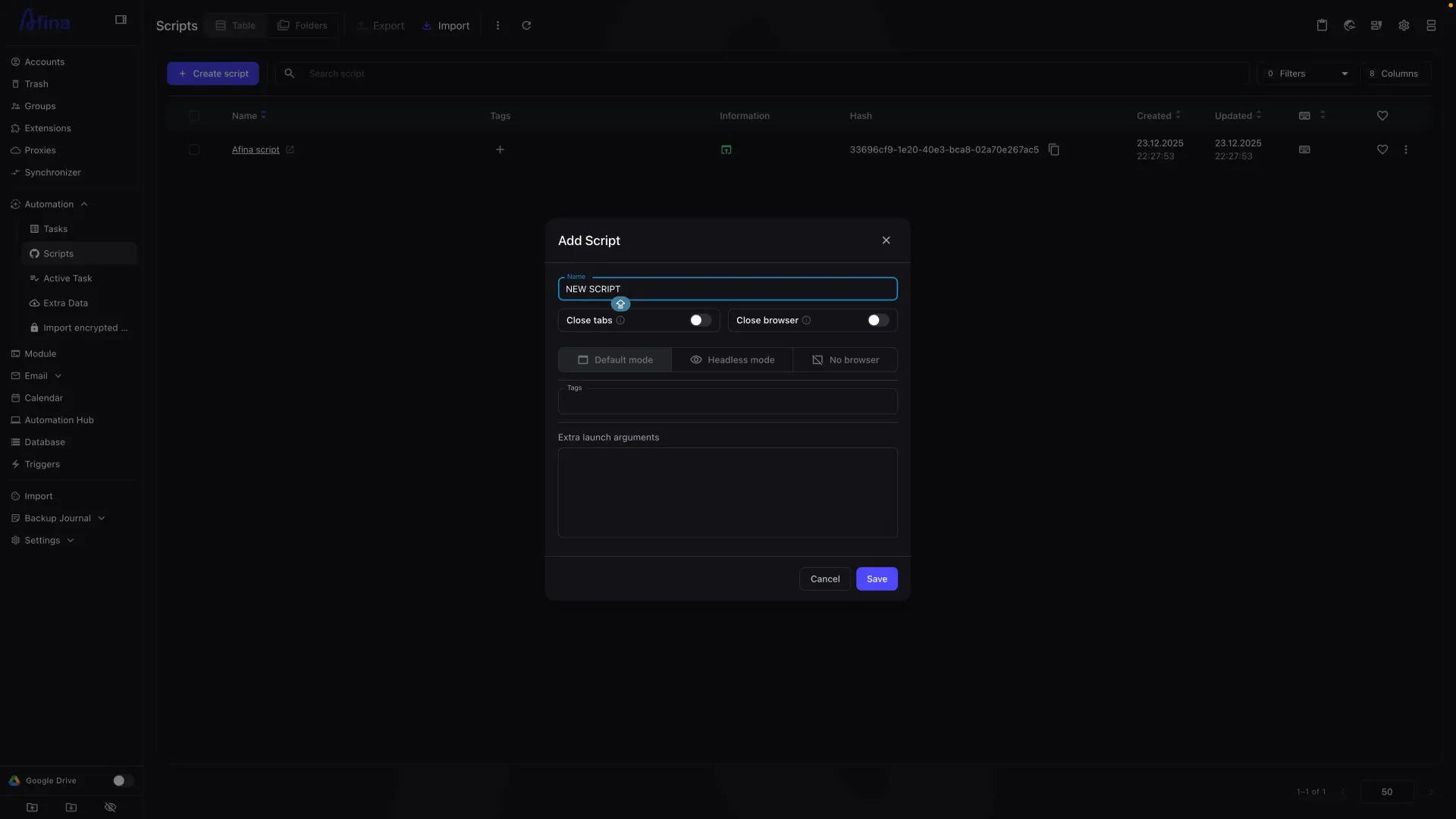
Afina combines a visual builder with JavaScript modules and developer access through a local API and Chrome DevTools Protocol. Its supplied overview describes ordinary browser runs, headless runs and a No Browser mode for tasks that do not require a browser window. It also includes a synchronizer for repeating mouse and keyboard actions across open profiles.
For a practical first example, consider a team checking a page it operates from several regional profiles. The initial workflow can open the page, wait for a known element, record whether it appeared and finish. Test this on one profile before using it across the group. A missing element should produce a useful failure result rather than an endless sequence of retries.
The official script overview describes navigation, clicks, input, waits and error branches. Keep the page logic separate from per-profile values where possible, so one tested script can use different inputs. Verify browser-based and non-browser tasks independently: assigning a proxy to a browser profile does not establish how every custom module or separate API request is routed.
Teamwork and Choosing a Plan
Afina’s overview describes roles and permissions for launching, deleting and transferring profiles. For a shared workspace, decide who owns each profile and who may edit its connection details. A naming convention and a short handover note are often more useful than creating another copy of an existing environment. Review what profile data accompanies a transfer before handing it to another user.
The following USD prices were checked with monthly billing selected on Afina’s pricing page on September 23, 2026:
| Plan | Monthly price | Profile limit | Included team users |
|---|---|---|---|
| Lite | $9 | 20 | No team access |
| Starter | $19 | 50 | No team access |
| Base | $29 | 100 | 2 |
| Standard | $69 | 300 | 5 |
| Max | $129 | 1,000 | 10 |
Longer billing periods have different effective monthly rates and require a larger payment. Additional users cost extra on eligible plans. Check the selected billing term, current feature availability and final checkout amount before subscribing. Browser subscriptions and ProxyUDP connections are separate purchases.
Frequently Asked Questions
Does Afina replace a proxy subscription?
No. The browser manages profiles and their connection settings. You still need the appropriate proxy service and credentials for the network connection you intend to use.
Does choosing SOCKS5 guarantee that UDP is proxied?
No. The browser client, endpoint and network must support the required traffic. Afina documents native UDP support, but you should verify the actual profile and connection rather than infer the result from a protocol selector.
Can several profiles use the same proxy?
They can use the same endpoint where its connection limits allow it, but they will share its network identity. Separate cookies do not create separate exit IPs. Choose the assignment according to the project’s requirements, and check the exits when distinct network identities matter.
Which operating systems can run Afina?
Afina provides Windows and macOS desktop builds, including separate macOS downloads for Intel and Apple Silicon. Mobile fingerprint options describe the environment presented by a profile, not a native mobile application.
Does profile isolation guarantee that accounts cannot be linked?
No. It separates local session data and gives you control over browser settings. Websites can also use account details, behavior, network signals and other information. No single browser setting establishes complete anonymity.
Build Your First Afina and ProxyUDP Profile
Start with Afina Browser and a suitable ProxyUDP connection. Configure one profile, verify its public IP and UDP behavior, and expand the workflow once those checks pass.